
59 lines
3.2 KiB
Markdown
59 lines
3.2 KiB
Markdown
# Quick Run of TUIRoomKit Demo for iOS
|
|
|
|
_[中文](README.md) | English_
|
|
|
|
This document describes how to quickly run the TUIRoomKit demo project to make a high-quality audio/video call. For more information on the TUIRoomKit component connection process, see **[Integrating TUIRoomKit (iOS)](https://cloud.tencent.com/document/product/647/84237)**.
|
|
|
|
## Directory Structure
|
|
```
|
|
TUIRoomKit
|
|
├─ Example // multi-person video conferencing demo project
|
|
├─ App // Folder of entering/creating multi-person video conferencing UI code and used images and internationalization string resources
|
|
├─ Debug // Folder of the key business code required for project debugging and running
|
|
├─ Login // Folder of the login UI and business logic code
|
|
└─ TXReplayKit_Screen // Folder of sharing screen
|
|
├─ TUIRoomKit // Folder of multi-person video conferencing UI code and used images and internationalization string resources
|
|
├─ TUIBarrage // Barrage components
|
|
└─ TUIBeauty // Beauty components
|
|
```
|
|
|
|
## Environment Requirements
|
|
- Xcode 12.0 or above
|
|
-
|
|
## Running the Demo
|
|
|
|
[](id:ui.step1)
|
|
### Step 1. Create a TRTC application
|
|
1. Go to the [Application management](https://console.cloud.tencent.com/trtc/app) page in the TRTC console, select **Create Application**, enter an application name such as `TUIKitDemo`, and click **Confirm**.
|
|
2. Click **Application Information** on the right of the application as shown below:
|
|
<img src="https://qcloudimg.tencent-cloud.cn/raw/62f58d310dde3de2d765e9a460b8676a.png" width="900">
|
|
3. On the application information page, note down the `SDKAppID` and key as shown below:
|
|
<img src="https://qcloudimg.tencent-cloud.cn/raw/bea06852e22a33c77cb41d287cac25db.png" width="900">
|
|
|
|
>! This feature uses two basic PaaS services of Tencent Cloud: [TRTC](https://www.tencentcloud.com/document/product/647/35078) and [IM](https://www.tencentcloud.com/document/product/1047/33513). When you activate TRTC, IM will be activated automatically. IM is a value-added service.
|
|
|
|
[](id:ui.step2)
|
|
### Step 2. Configure the project
|
|
1. Open the demo project `DemoApp.xcworkspace` with Xcode 12.0 or later.
|
|
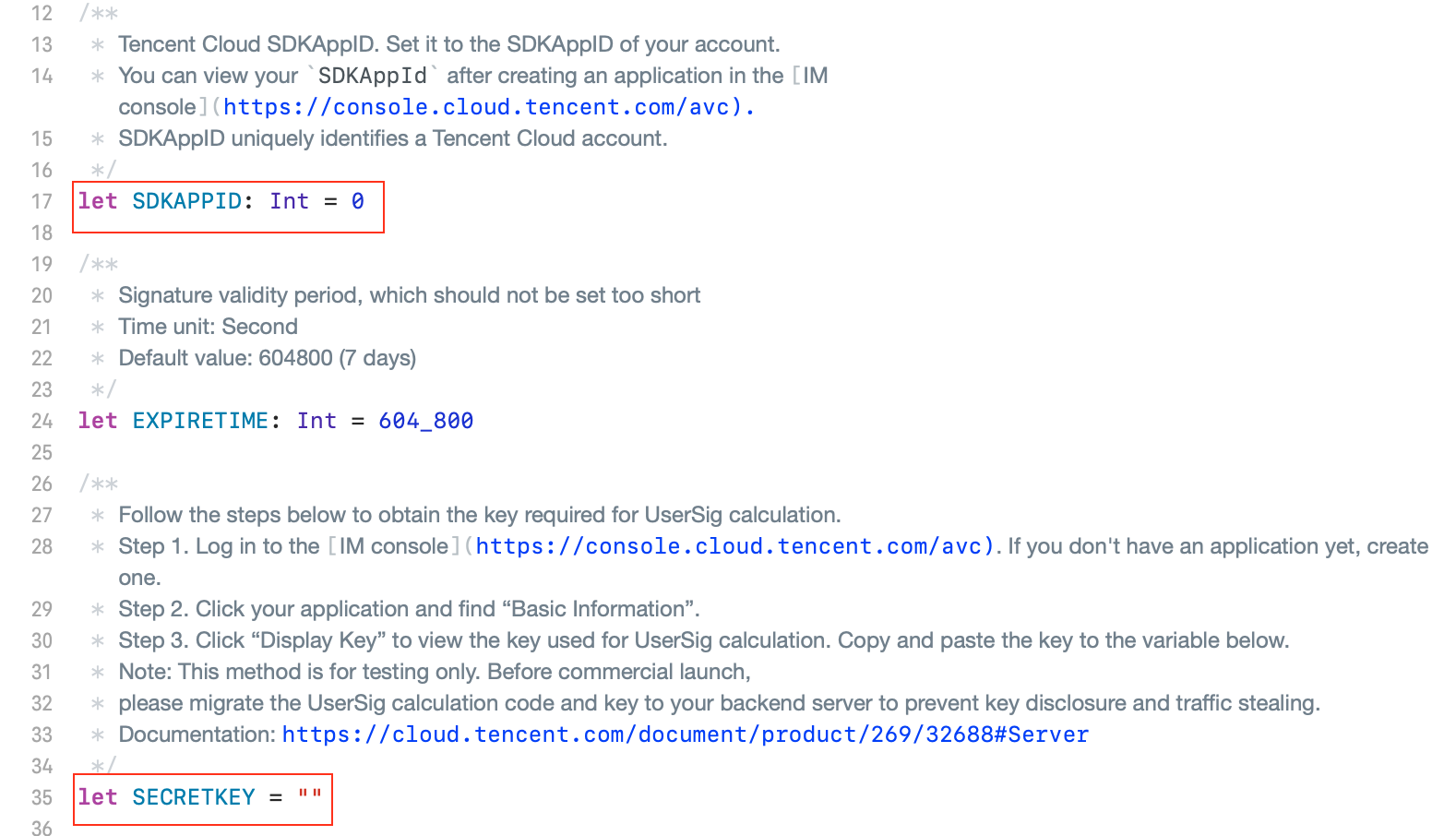
2. Find the `iOS/Example/Debug/GenerateTestUserSig.swift` file in the project.
|
|
3. Set the following parameters in `GenerateTestUserSig.swift`:
|
|
<ul style="margin:0"><li/>SDKAPPID: `0` by default. Set it to the actual `SDKAppID`.
|
|
<li/>SECRETKEY: Left empty by default. Set it to the actual key.</ul>
|
|
|
|
|
|
|
|
[](id:ui.step3)
|
|
### Step 3. Compile and run the application
|
|
|
|
1. Open Terminal, enter the project directory, run the `pod install` command, and wait for it to complete.
|
|
2. Open the demo project `TUIRoomKit/Example/DemoApp.xcworkspace` with Xcode 12.0 or later and click **Run**.
|
|
|
|
[](id:ui.step4)
|
|
|
|
## Have any questions?
|
|
Welcome to join our Telegram Group to communicate with our professional engineers! We are more than happy to hear from you~
|
|
Click to join: https://t.me/+EPk6TMZEZMM5OGY1
|
|
Or scan the QR code
|
|
|
|
<img src="https://qcloudimg.tencent-cloud.cn/raw/9c67ed5746575e256b81ce5a60216c5a.jpg" width="320"/>
|