Quick Run of TUIRoomKit Demo for iOS
中文 | English
This document describes how to quickly run the TUIRoomKit demo project to make a high-quality audio/video call. For more information on the TUIRoomKit component connection process, see Integrating TUIRoomKit (iOS).
Directory Structure
TUIRoomKit
├─ Example                    // multi-person video conferencing demo project
    ├─ App                    // Folder of entering/creating multi-person video conferencing UI code and used images and internationalization string resources
    ├─ Debug                  // Folder of the key business code required for project debugging and running
    ├─ Login                  // Folder of the login UI and business logic code
    └─ TXReplayKit_Screen     // Folder of sharing screen
├─ TUIRoomKit                 // Folder of multi-person video conferencing UI code and used images and internationalization string resources
├─ TUIBarrage                 // Barrage components
└─ TUIBeauty                  // Beauty components
Environment Requirements
- Xcode 12.0 or above
Running the Demo
Step 1. Create a TRTC application
- Go to the Application management page in the TRTC console, select Create Application, enter an application name such as
TUIKitDemo, and click Confirm. - Click Application Information on the right of the application as shown below:

- On the application information page, note down the
SDKAppIDand key as shown below: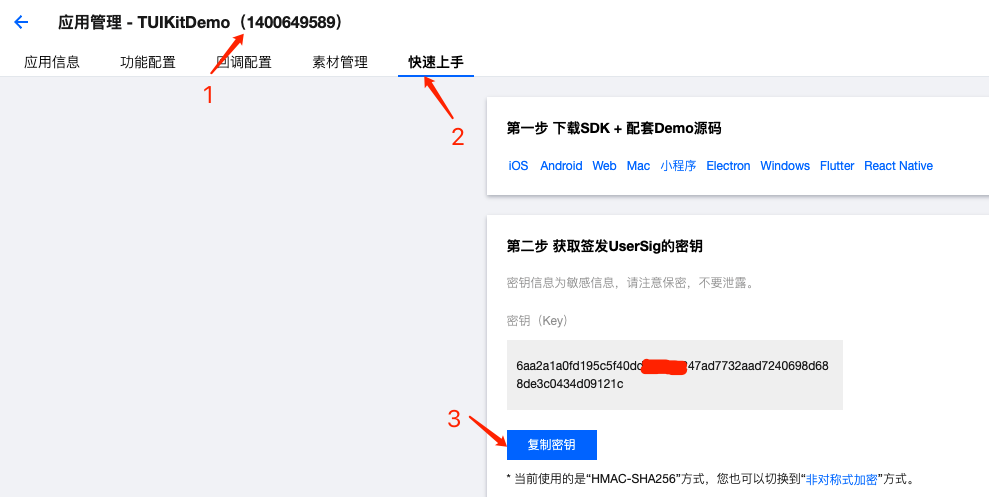
! This feature uses two basic PaaS services of Tencent Cloud: TRTC and IM. When you activate TRTC, IM will be activated automatically. IM is a value-added service.
Step 2. Configure the project
- Open the demo project
DemoApp.xcworkspacewith Xcode 12.0 or later. - Find the
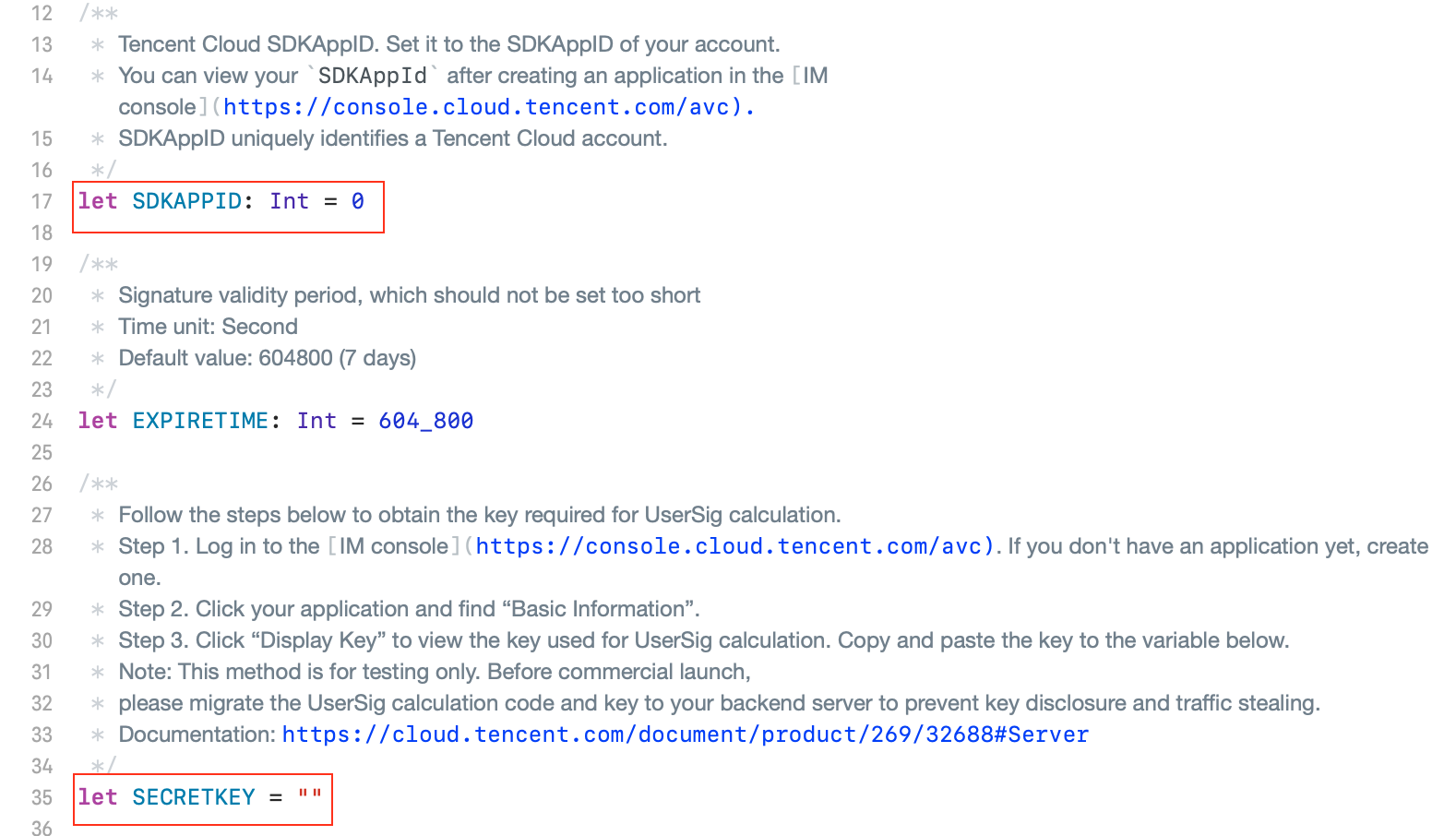
iOS/Example/Debug/GenerateTestUserSig.swiftfile in the project. - Set the following parameters in
GenerateTestUserSig.swift:
- SDKAPPID: `0` by default. Set it to the actual `SDKAppID`.
- SECRETKEY: Left empty by default. Set it to the actual key.
Step 3. Compile and run the application
- Open Terminal, enter the project directory, run the
pod installcommand, and wait for it to complete. - Open the demo project
TUIRoomKit/Example/DemoApp.xcworkspacewith Xcode 12.0 or later and click Run.
Have any questions?
Welcome to join our Telegram Group to communicate with our professional engineers! We are more than happy to hear from you~ Click to join: https://t.me/+EPk6TMZEZMM5OGY1 Or scan the QR code